How to Make Fancy Cafe AI Video
 Fancy Cafe AI
Turn your portrait into a café table mix-up: prepare your cast, try a free image preview, choose video options and download your clip.
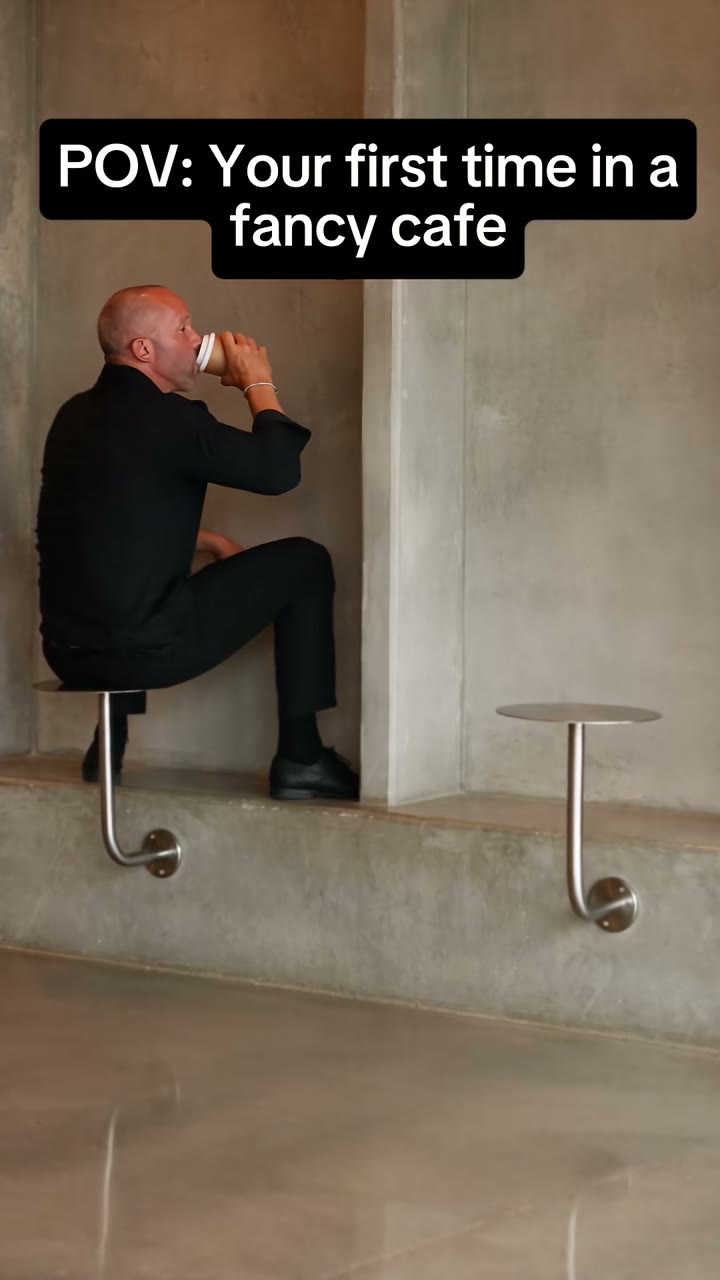
A tiny table, a confident first visit and one awkward realization: that is the scene you will create. To make a Fancy Cafe AI video, upload your first-timer photo, optionally cast a friend as the regular, choose your format and duration, then generate your clip. You can try a free still-image preview before making a video.
The cover above is a frame from the trend example by @leehoustonx, also credited in the homepage screening room. It illustrates the story; your uploaded photo supplies the reference for your own version.
Open the Fancy Cafe AI generator →1. Cast your first-timer
Choose a clear photo of one person facing the camera, with even light and an unobstructed face. Upload it to First-timer. The uploader accepts JPEG, PNG and WebP; follow its current size limits. Avoid distant group shots, heavy filters and sunglasses.
One photo is enough. Leave Café regular empty for an AI café guest, or add a friend's photo to cast that role. Adding the second reference does not add a separate credit charge. Use photos you have permission to use and get agreement from the people pictured.
2. Understand the scene before styling it
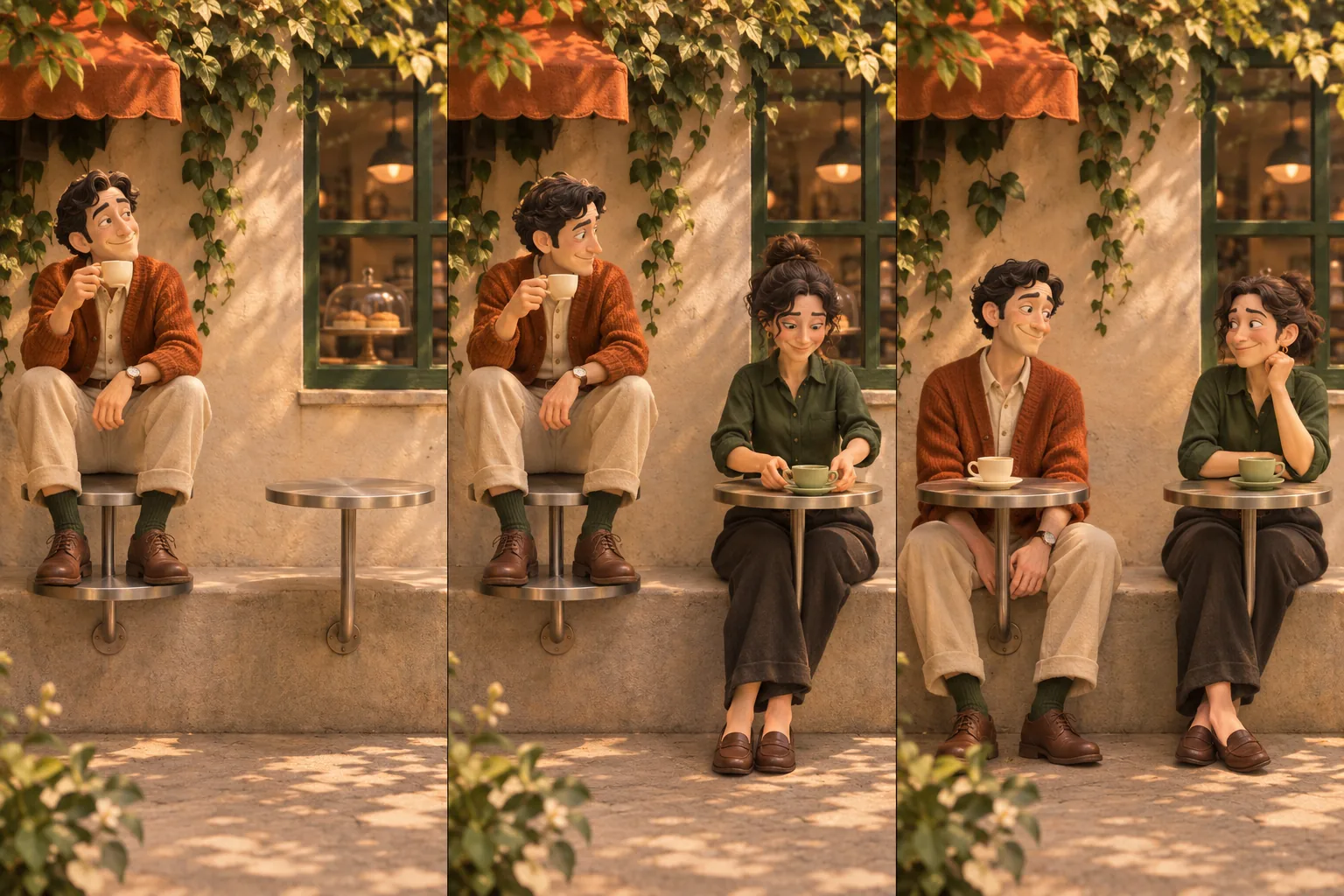
The story follows a first-timer who sits on a little table, sees a regular use the neighboring table for a cup, and realizes where the seat actually is. Both tables need to stay visible for the joke to read.
01 / The confident arrival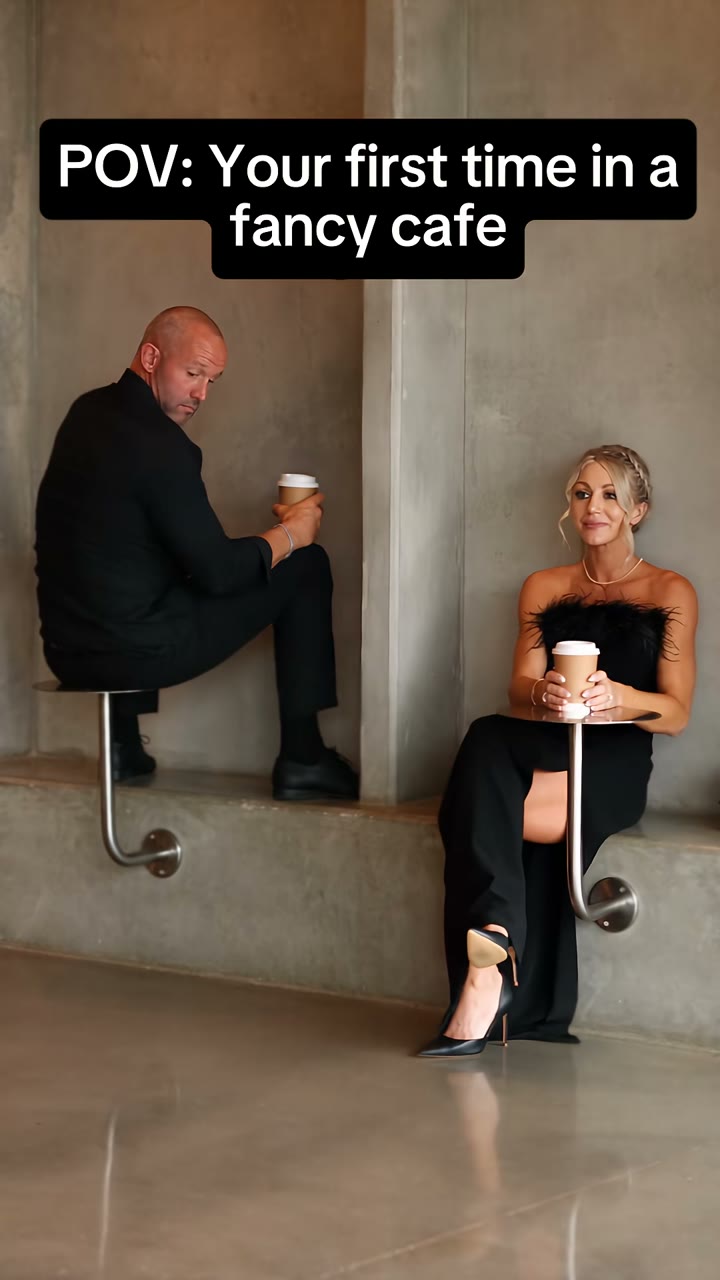 02 / The revealing detail
3. Review the reference-video format
The café template makes a 21-second, 9:16 silent MP4 at 480p (default) or 720p. It uses the reference video for the café, framing and action sequence; your photos supply the cast. Leave the optional regular photo empty to keep the reference guest.
The reference template keeps its scene and timing fixed. Review the current credit quote before confirming. The template guide explains the two roles.
4. Try the free image preview
Select Generate free preview to see a still-image interpretation of your cast in the café. It requires no sign-in and uses no customer credits. Confirm the photo permission prompt, then keep the tab open while it is prepared.
The preview has a minimum 25-second wait and may take longer. It is an image, so use it to assess the overall look and composition; it does not show motion or guarantee an identical video frame. If you change either photo, make a fresh image preview. The video follows the reference scene independently.
5. Generate your video
When you are ready, sign in, review the live credit quote next to Generate video, and confirm submission. Video generation uses credits separately from the free image preview. Check the credit packs and pricing if you need a balance top-up.
Follow the actual task status. If a connection is interrupted and Check video status appears, check the existing task before submitting again. A new generation is a separate request, so review its quote before confirming it.
6. Review, download and caption
Watch the finished clip from beginning to end. Check the face, hands, table placement and whether the regular's action explains the misunderstanding. Download the completed video when you are happy with it.
The generator does not add a soundtrack. Add music you are allowed to use, captions and any finishing edits in your publishing app. A simple caption such as “My first time in a fancy cafe” establishes the setting without explaining the punchline. Follow your platform's AI-content labeling requirements.
Quick fixes for your next attempt
- The face is hard to recognize: choose a clearer, evenly lit portrait.
- The scene feels cluttered: simplify the visual style and keep the café setting.
- The joke is hard to follow: check that the tables and bench are readable in your chosen format.
- You only have a still image: the free preview and Generate video are separate actions.
Ready for your version? Create your café video, explore how the Fancy Cafe Meme works, or browse all guides.
Make your own Fancy Cafe video
Bring the café mix-up to life with your own photo. Cast yourself as the first-timer, and add a friend as the regular if you like.
Upload a photo